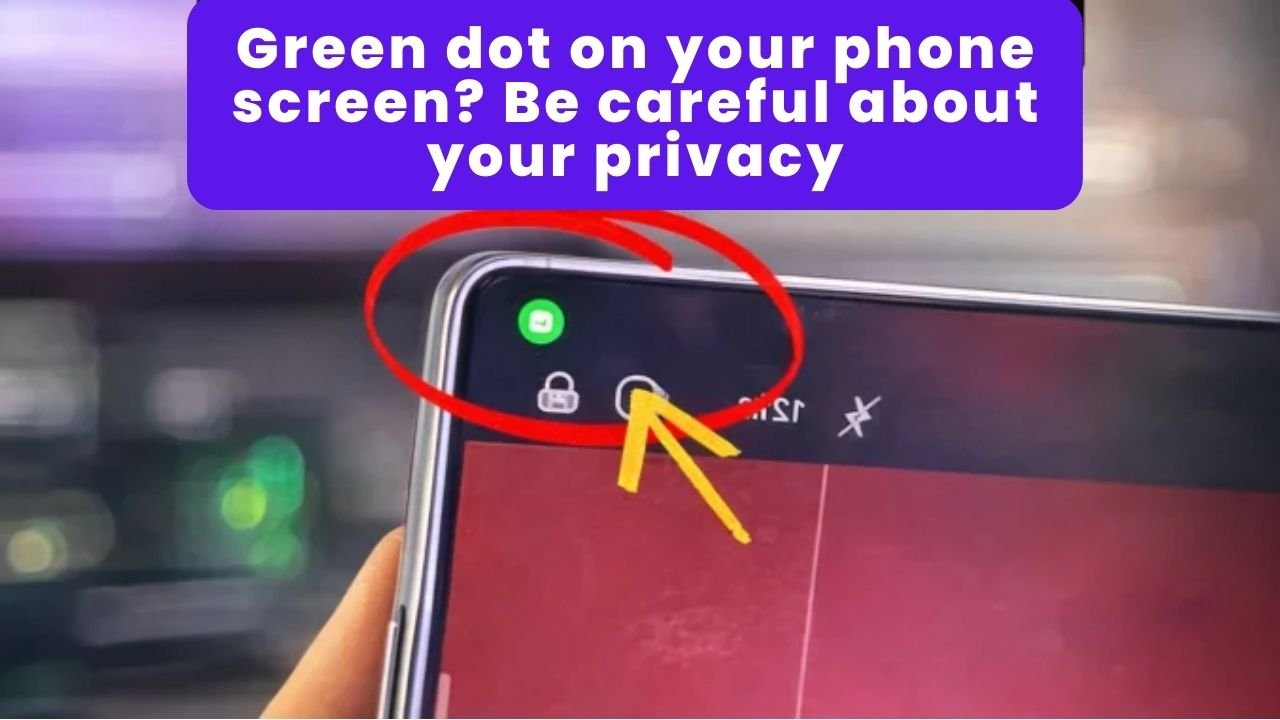
What does it mean when an app is “spying” on you?
When people say an app is spying, it doesn’t always mean it’s a virus or illegal software.
Most of the time, it simply means the app has too many permissions or unnecessary access to sensitive features on your device.
For example:
- A video meeting app needing access to the camera and microphone makes sense.
- A flashlight app asking for your location all the time definitely does not.
The real issue starts when:
- Permissions are granted without checking
- Access stays active forever
- Apps run in the background without you noticing
When this happens, apps may collect more data than they actually need, which directly affects your privacy.
The most sensitive permissions on your phone
Some permissions deserve special attention because they can reveal a lot about your life and daily habits.
📷 Camera
Camera access allows apps to take photos and record videos.
If an app uses the camera outside of its normal purpose, it can create serious privacy risks.
🎙 Microphone
Microphone access lets apps record audio from your surroundings.
In some cases, this could include conversations or background sounds without a clear reason.
📍 Location
Location access shows where you are, where you go, and your daily routine.
This is one of the most valuable types of data for many companies.
These permissions are not dangerous by themselves. The real problem is when they are used continuously, invisibly, or without a clear purpose.
Why most people never notice this
The truth is simple: the system does not make it very obvious.
Most permissions are granted during the first use of an app, and after that, people rarely think about them again.
Here are a few reasons why this goes unnoticed:
- Permission alerts are small and easy to ignore
- Apps can access features in the background
- Very few people review permissions regularly
- Phones often have dozens of installed apps
So this isn’t really carelessness — it’s more about lack of visibility.
How to manually check which apps have access
If you want to check everything manually, you can do it directly through your phone settings.
On Android devices, the process usually looks like this:
- Open Settings
- Go to Privacy
- Tap Permission Manager
- Select Camera, Microphone, or Location
- Review the list of apps that have access
This method works, but it also has some downsides.
Limitations:
- It takes time
- There is no quick overview
- Managing everything regularly becomes difficult
If you have many apps installed, reviewing permissions manually can become a tiring task.
When a permission management tool can help
If you:
- Have many apps installed
- Want a clearer overview
- Prefer a faster way to manage permissions
Then using a permission manager tool can make things much easier.
These apps do not hack your phone or collect new information. They simply organize data that Android already provides, but in a much clearer and easier format.
Example: Checking permissions with Permit Hub
One example of a tool that can help with this is Permit Hub: Permission Manager.
It works like a central dashboard where you can quickly see which apps have access to important phone features.
How to use Permit Hub
Step 1 – Install the app
Download and install the app from the Play Store.
Step 2 – Initial permissions
When you open the app for the first time, it will request only the permissions needed to read and organize system information.
Step 3 – Central dashboard
Inside the main screen, you can quickly see which apps have access to:
- Camera
- Microphone
- Location
Step 4 – Spot unusual access
This makes it easy to find things like:
- Rarely used apps with active permissions
- Permissions that don’t match the app’s purpose
Step 5 – Take action
From there, you can jump directly to the system settings to remove or adjust permissions.
Important: Permit Hub does not spy on users or collect personal data. It simply displays the information Android already provides, but in a more practical way.
How to decide which permissions to disable
Before removing every permission, take a moment to think about a few simple questions:
- Does the app really need this permission?
- How often do I actually use this app?
- Is the permission active all the time or only during use?
- Do I trust the developer of this app?
If you are unsure, safer options usually include:
- Allow only while using the app
- Remove the permission and test if the app still works
In many cases, you will notice that nothing changes.
Good habits to protect your privacy
Here are a few simple habits that can greatly improve your phone’s privacy:
✔ Review app permissions every 2–3 months
✔ Uninstall apps you no longer use
✔ Avoid permanent permissions unless necessary
✔ Be cautious with simple apps asking for complex access
Your smartphone is not insecure by default. The real problem happens over time, when we keep installing apps and granting permissions without checking them.
Taking back control doesn’t require technical skills — just a little attention and the right tools.
Even small checks can significantly reduce privacy risks. The key is knowing who has access to what, and making that decision consciously.
